Find the Hub easily on your phone

You add a shortcut of any website on your phone Home Screen. This helps you open it fast, just like an app. The process for adding a website to your home screen is simple and takes less than a minute. Here is how you can do it for the Hub:

iPhone

  1. Go to the Safari app on your iPhone.
Image showing how to Open Safari on your I-Phone

2. Go to the website you want to add to your Home Screen (https://deafblindness.info/)
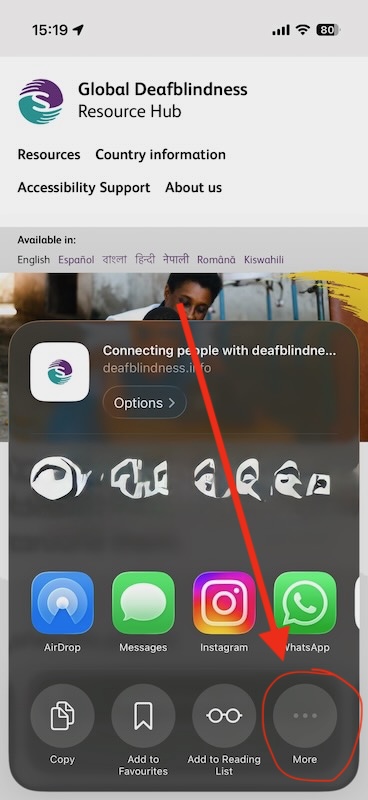
    Image showing you to open the website https://deafblindness.info/
    Image showing you to open the website https://deafblindness.info/

    3. Select the Share/More icon in the Safari toolbar
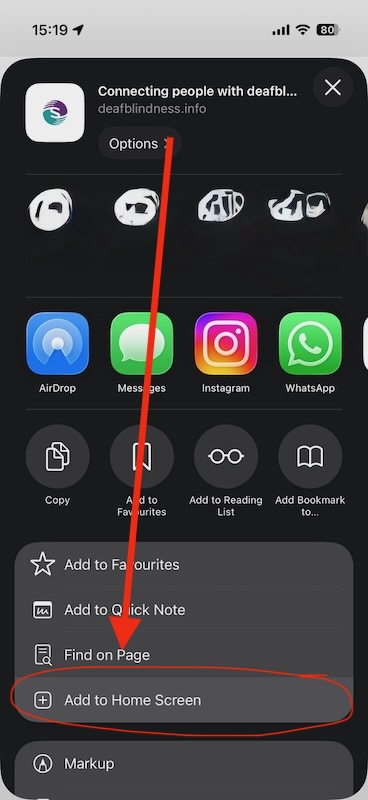
      Image showing you how to select the Share/More icon in the Safari toolbar
      Image showing you how to select the Share/More icon in the Safari toolbar

      4. Scroll down the list of options, then tap Add to Home Screen (you might have to click on More to see the option).
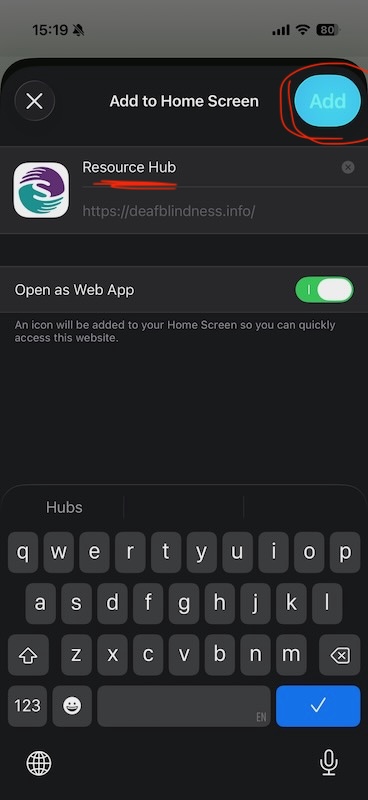
      Image showing you how to scroll down the list of options, then tap Add to Home Screen (you might have to click on More to see the option
      Image showing you how to scroll down the list of options, then tap Add to Home Screen (you might have to click on More to see the option

      If you don’t see Add to Home Screen, you can add it. Scroll down to the bottom of the list, tap Edit Actions, then tap Add to Home Screen.

      1. Give it a name then tap ‘Add’. The icon appears only on the device where you add it.
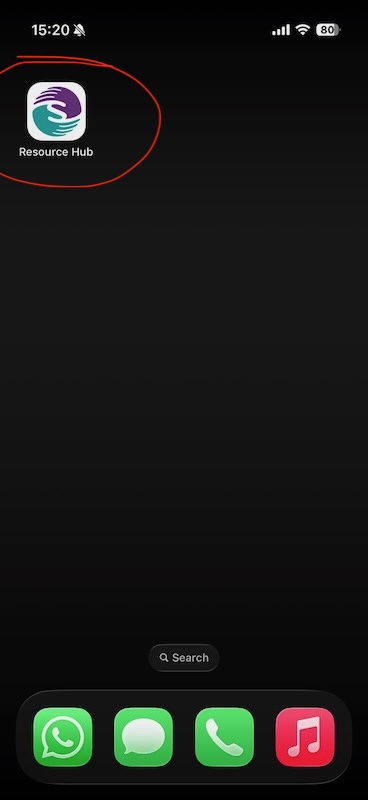
      6.	Image showing the website as a bookmark on the homescreen
      Image showing the website as a bookmark on the homescreen

      Android

      1. On your Android device, open Chrome .
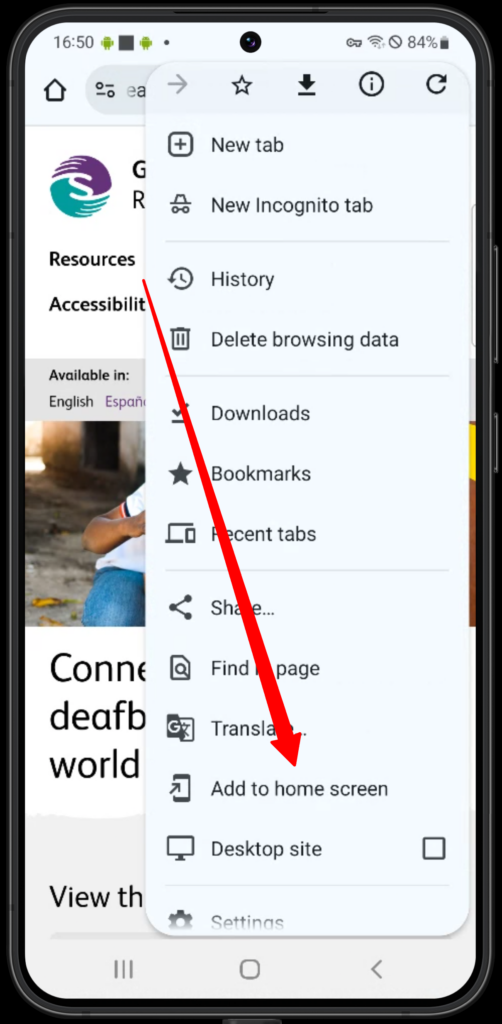
      Image showing you how to Open Chrome and type the website in https://deafblindness.info/ . Then select (three dots) to open the menu
      Image showing you how to Open Chrome and type the website in https://deafblindness.info/ . Then select (three dots) to open the menu

      2. Go to the website you want to create a shortcut for.
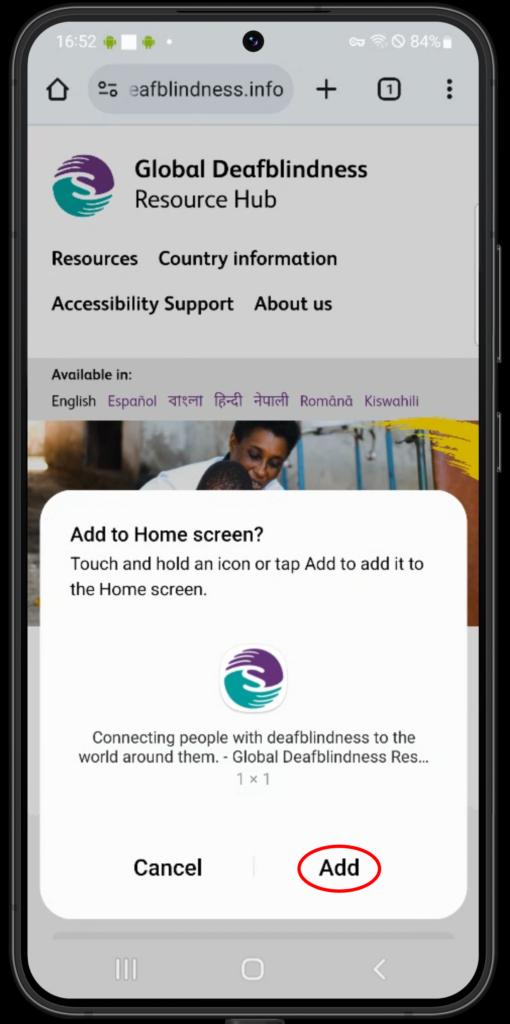
      Image showing you how to tap ‘Add to Home screen’
      Image showing you how to tap ‘Add to Home screen’

      3. To the right of the address bar (three dots), tap More  Add to home screen and  create shortcut.
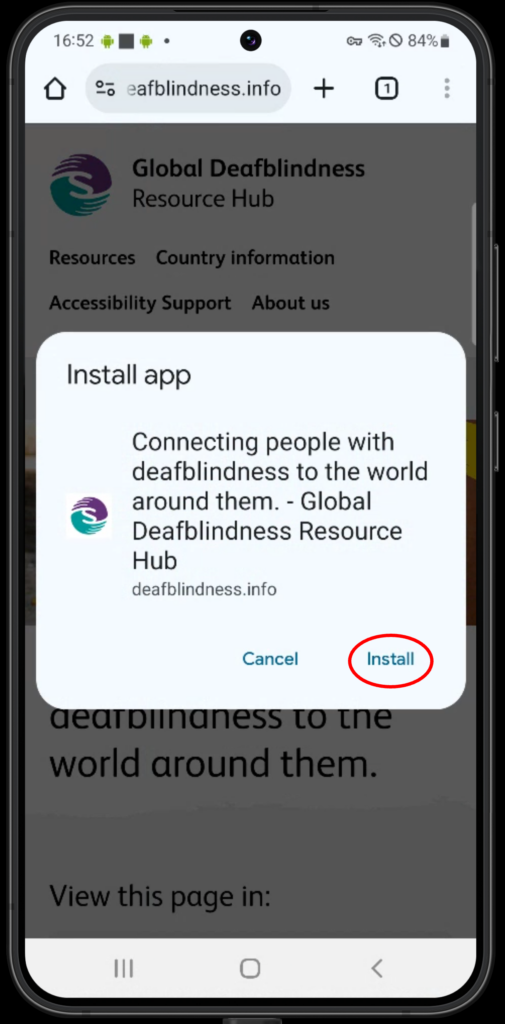
      Image showing you how to tap ‘Create a shortcut’

      4. From the dialog that appears:

      • Rename: Select the default name for the shortcut or rename the shortcut.
      • It may also give you an option to customise icon
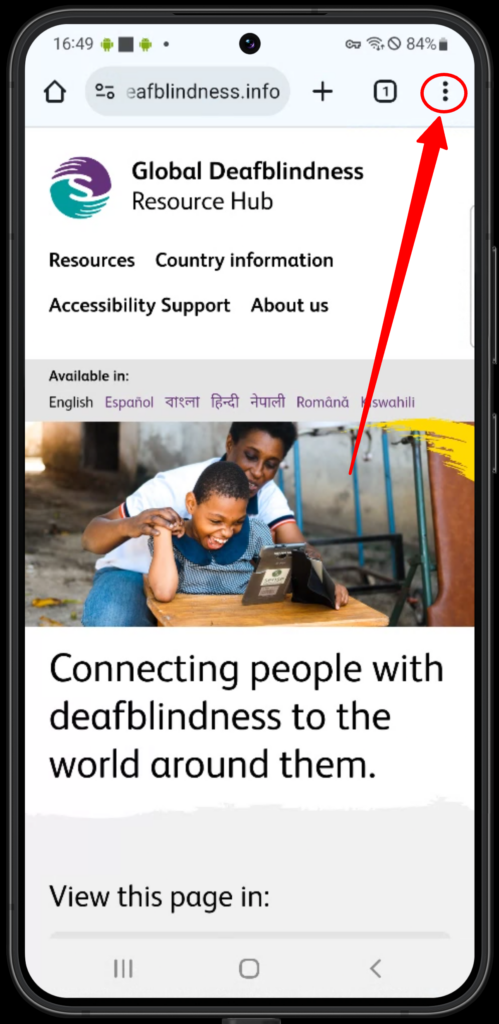
      Image showing you how to ‘Give it a name, and select Add’

      5. Tap Add. The icon appears only on the device where you add it.
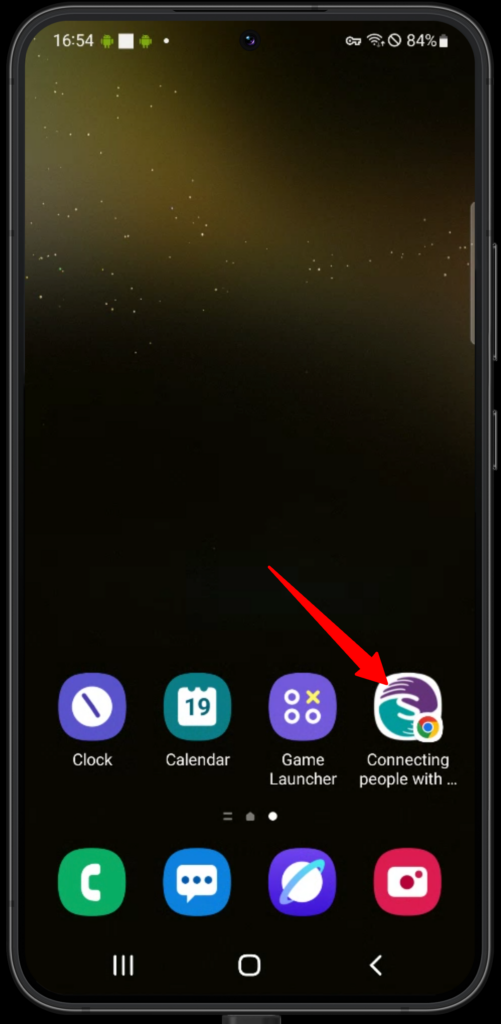
        Image showing the website as a bookmark on the home screen
        Image showing the website as a bookmark on the home screen

        For more help with accessibility, visit our Accessibility Support page.